How to Get Minecraft Seeds and Use Them in Any World
How to get Minecraft seeds is a five-minute skill that decides the next fifty hours of play. A seed is just a number – until you type it into the right box. Then it becomes a world: the same villages, the same stronghold, the same mushroom island, every single time. If you know how to get Minecraft seeds and enter them correctly, you can stop leaving your worlds to chance and start picking them like you pick anything else: on purpose.
Try These Seeds in the Seed Map
This guide covers the full loop: finding a seed worth playing, entering it when you create a world on Java, Bedrock, and Switch, and fixing the handful of reasons a seed can seem broken.
A quick note on wording: this guide is about world seeds – the number that generates a world. If you were looking for farming seeds (wheat, melon, pumpkin), those come from breaking grass, village farms, and loot chests, and they are a different thing entirely.
What Is a Minecraft Seed?
A seed is the starting number Minecraft’s world generator uses to build a world. Give it the same seed, the same edition, and the same version, and it builds the same world – same biomes, same structures, same spawn. Change any one of those three and the world changes, even with the same number. That is the single most important thing to understand about seeds, because it explains nearly every “this seed doesn’t work” complaint. It is also why how to get Minecraft seeds matters more than how to generate a random world: a shared seed is a shared experience.
Seeds come in two forms: plain numbers like 4850 or 7965, and words like mushroom or nyan. A word seed is just text the game converts to a number before generating. Both work the same way once entered.
Where to Get Seeds
You have three good sources, and one to be careful with:
- Curated seed lists. Our best Minecraft seeds hub lists tested worlds by theme – survival, villages, islands, ocean, and more – with verified features near spawn. This is the fastest route to a seed that does what you want. If you are wondering how to get Minecraft seeds that are actually tested rather than randomly posted, curated lists are the answer.
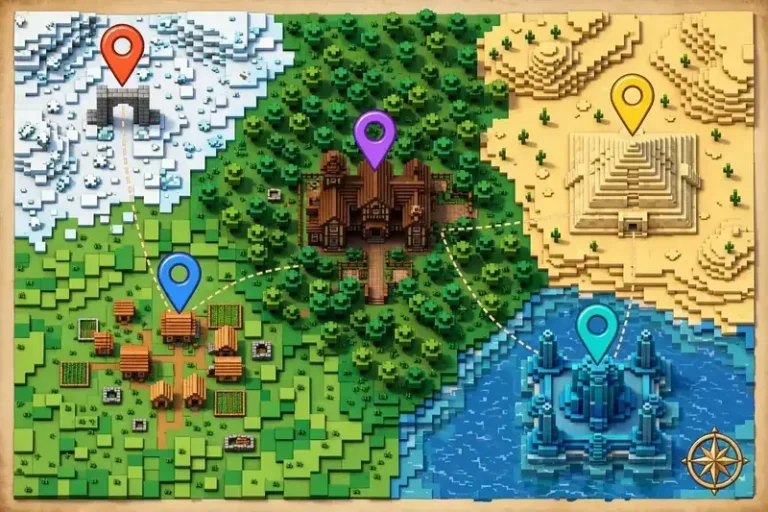
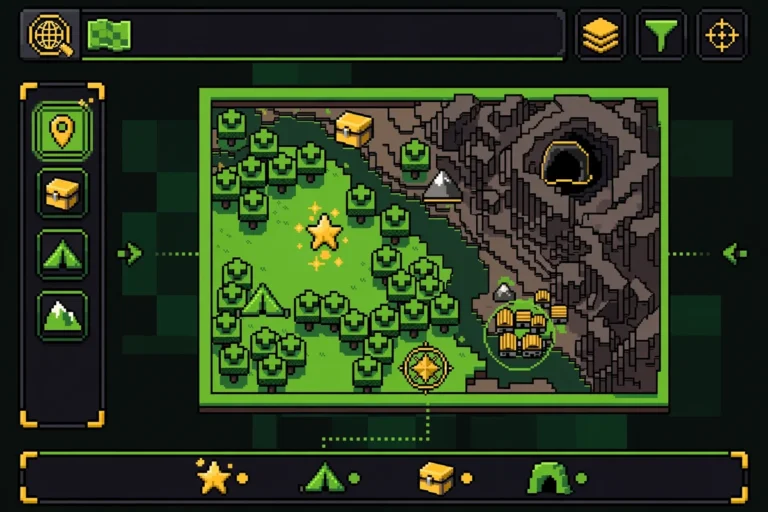
- A seed map. Paste any seed into the seed map and you can see the whole world before you commit: biomes, structures, and spawn. If a list seed looks good on paper, the map confirms it.
- Other players. Friends, forums, and community posts share seeds constantly. Treat shared seeds like recommendations: check the edition and version the poster used, because a Java seed on Bedrock builds a different world. Whatever the source, play it safe and check who tested the number before you build on it.
- Random generation. You can also let the game pick: leave the seed box blank and Minecraft generates a random world. That is how most players find their first world – but it is luck, not choice.
- Seed generator sites. Some sites roll a random seed for a chosen version and let you preview its map before you commit – a useful middle ground between a blind random world and a curated list pick. Treat their previews the same way as any list seed: check the edition and version before you build on it.
When you learn how to get Minecraft seeds from any source, note three things alongside the number: the edition (Java or Bedrock), the version it was tested on, and what makes it special. A seed without that context is half a seed.
How to Use Minecraft Seeds on Java
- From the main menu, click Singleplayer, then Create New World.
- Give the world a name.
- Click More World Options (or Advanced in newer versions).
- Click the Seed for the World Generator field and type or paste the seed number.
- Leave the world type on default unless the seed specifies otherwise, then click Create New World.
The world generates from your seed. If you want to double-check you entered it right, press T and type /seed – the game prints the seed back to you. That is all there is to how to get Minecraft seeds working on Java: the number goes in before the world is generated, never after. Learn it once and how to use minecraft seeds on Java stays the same on every version. (In survival, /seed needs cheats enabled or OP; in creative, it works directly.)
How to Put a Seed in Minecraft Bedrock
Bedrock covers Windows, Xbox, PlayStation, Switch, and mobile, and the steps are the same everywhere. Here is how to put a seed in Minecraft Bedrock:
- From the main menu, tap Play, then Create New.
- Tap Create New World.
- Scroll down to Advanced and tap it to expand the section.
- Find the World Seed field and type or paste the seed number.
- Set the game mode and difficulty as you like, then tap Create.
One Bedrock detail worth knowing: Bedrock seeds are 32-bit numbers. If you paste in a huge Java seed, Bedrock will not build the same world Java would – the two editions use different generators. Always use seeds tested on Bedrock for Bedrock worlds. Once you know how to get Minecraft seeds matched to your edition, Bedrock entry takes under a minute. Our seed map lets you switch editions before you commit, so you can verify a seed on Bedrock first.
How to Use Seeds in Minecraft Switch
The Switch runs Bedrock Edition, so how to use seeds in Minecraft Switch follows the Bedrock steps exactly:
- From the main menu, tap Play, then Create New.
- Tap Create New World.
- Open Advanced and enter the seed in the World Seed field.
- Tap Create.
Two Switch-specific notes. First, entering a seed needs no Nintendo Switch Online subscription – that is only for online multiplayer. Second, if a friend wants to join your seeded world, that is when online play matters: you will need a subscription and to add each other as friends. The seed itself is free to use offline. So the Switch answer to how to get Minecraft seeds is the Bedrock answer: same menus, same seed field, same rules.
Java vs Bedrock vs Switch: Entering Seeds Compared
| Java (PC) | Bedrock (PC / console / mobile) | Switch | |
|---|---|---|---|
| Menu path | Singleplayer → Create New World → More World Options | Play → Create New → Create New World → Advanced | Play → Create New → Create New World → Advanced |
| Seed field | Seed for the World Generator | World Seed | World Seed |
| Word seeds | Yes | Yes | Yes |
| Needs online subscription | No | No | No (only for online multiplayer) |
| Same number = same world? | Only with another Java world, same version | Only with another Bedrock world, same version | Only with another Bedrock world, same version |
If you are comparing editions, how to get Minecraft seeds right comes down to one habit: always note the edition and version next to the number.
Minecraft Seeds Not Working? Fix It Here
“Minecraft seeds not working” is one of the most common seed complaints, and almost every case comes down to one of these:
1. Wrong edition. A Java seed entered on Bedrock (or the reverse) builds a completely different world. This is the number-one cause. Match the edition the seed was tested on. Getting the edition right is the single biggest part of how to get Minecraft seeds working at all.
2. Wrong version. Seeds are version-sensitive. A seed tested on Java 26.3 can generate differently on an older Java release, and the same applies to Bedrock updates. Use the version the seed was made for when you can, or accept small differences.
3. A typo in the seed. One wrong digit builds a different world. Copy-paste beats retyping, especially for long negative seeds. Check for a missing minus sign – it changes everything.
4. Marketplace maps and templates. Worlds bought or downloaded from the Marketplace are hand-built or pre-generated; their seed field does not control them. If you entered a seed into a template world and nothing changed, that is why.
5. Experimental features. If the seed was generated with experimental features on (or off), and your world has the opposite setting, terrain and structures can differ.
6. You typed the seed in the wrong place. The seed goes in the seed field during world creation, not in chat, not in the world name, and not in an existing world’s settings. Existing worlds cannot be re-seeded – a seed only applies when the world is first created.
7. Minecraft seeds not working on Switch specifically. On Switch, the usual culprits are edition mix-ups (using a Java seed) and entering the seed after the world was already created. Delete the test world, create a fresh one, and enter the seed in the Advanced section before tapping Create. If the world still looks wrong, verify the seed on Bedrock in the seed map first. Searches for minecraft seeds not working switch almost always trace back to these two causes: a Java seed, or a seed entered after the world already existed.
If you have checked all seven and the world still does not match, the seed source probably listed the wrong edition or version. Try a seed from a verified list instead of a random post.
How Do You Put in a Minecraft Seed? Quick Recap
Find a seed you like, note its edition and version, create a new world, and type the seed into the seed field before generating: Seed for the World Generator on Java, World Seed on Bedrock and Switch. Then check the result in the seed map if you want to plan your first hour – knowing where the nearest village is before you spawn changes the whole early game. That is how to get Minecraft seeds from a list into a playable world in under two minutes. Once you have done it once, how to use minecraft seeds feels automatic: pick, note the edition, type, create.
One related job is different: if you already have a world and want to learn its number, see our guide on how to find your Minecraft seed – on Java that is /seed with cheats or OP, on Bedrock it is the world settings. Either way, once you know how to get Minecraft seeds, the world you want is one typed number away.
Final Thoughts
Once you have done it once, how to use minecraft seeds feels automatic: pick a seed, note its edition and version, type it in before the world generates. If you ever hit minecraft seeds not working again, check the edition first, then the version, then the typing – those three checks solve nearly every case.
And once your world exists, how to get Minecraft seeds stops being the question and exploring starts being the fun. Preview any seed on the seed map before you commit, or find your next world with the seed finder – and if you ever need the number of a world you already made, the guides hub shows where to find it.