How to Use Minecraft Seed Map – Complete Step-by-Step Tutorial
Learning how to use minecraft seed map tools is the fastest skill a Minecraft player can pick up. Ten minutes from now, you’ll read any world seed like a map — villages, strongholds, rare biomes — before ever spawning in.
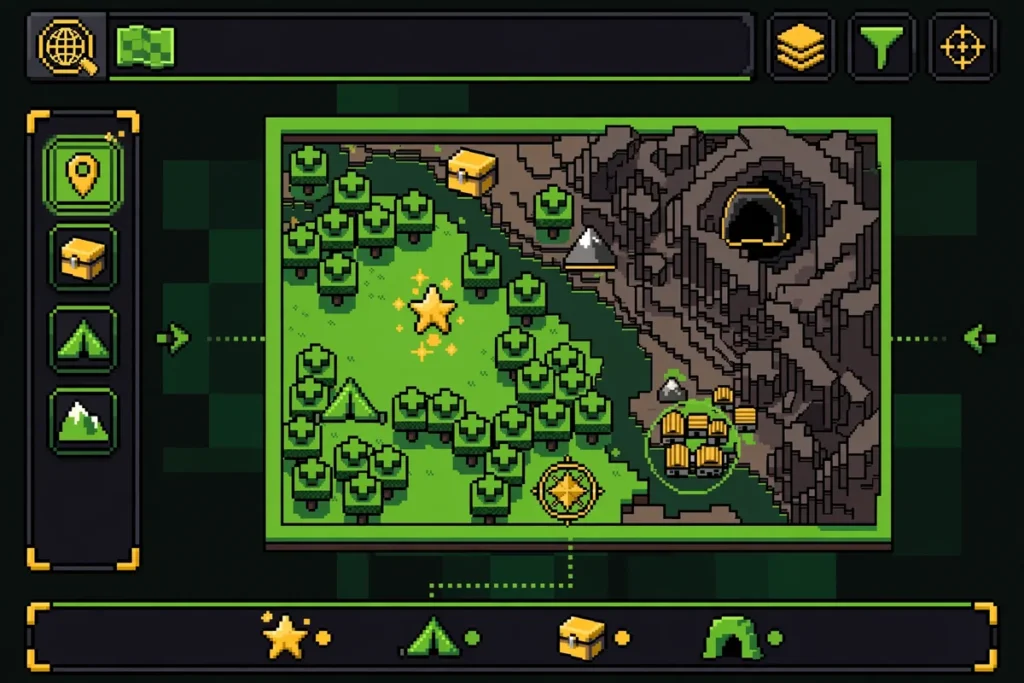
If you’ve been searching for how to find minecraft seed map tools covering Java and Bedrock, you’re in the right place. A seed map draws a world top-down from its seed: colors for biomes, icons for structures, all in true positions. This tutorial uses the free Minecraft Seed Finder map (Java 1.7–26.3, Bedrock Beta 1.7–26.60).
What Is a Minecraft Seed Map?
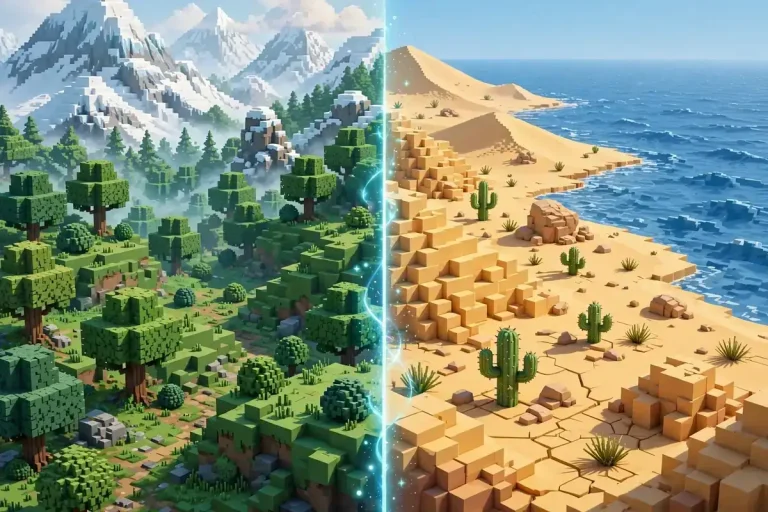
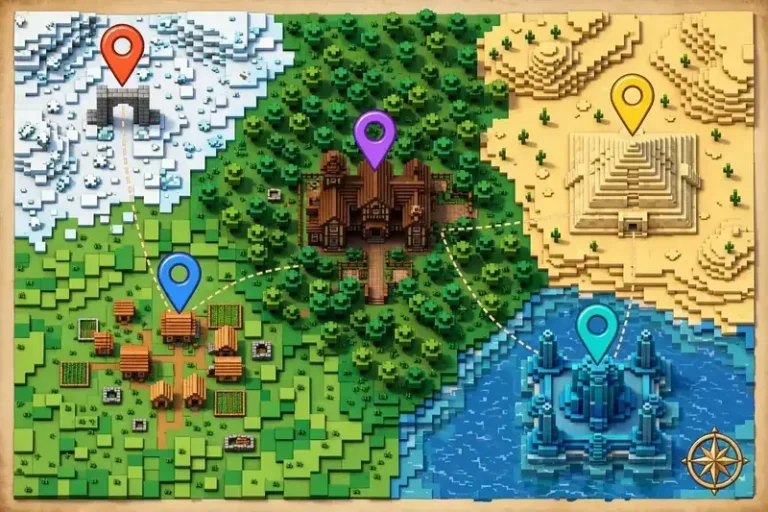
A Minecraft seed map is a 2D visualization of a whole world, drawn from its seed number without launching the game. Every world is built by an algorithm from one starting number, so a tool running the same algorithm can draw it in advance: green plains, yellow deserts, white peaks, blue oceans — with icons marking every village, temple, and stronghold in its true position.
How to Use Minecraft Seed Map: The 7-Step Walkthrough
Here’s how to use minecraft seed map controls from first load to finished map:
Step 1 — Enter your seed. Paste it into the seed box on the seed map. Numbers like 12345 and words both work. No seed? See how to find your Minecraft seed.
No seed of your own yet? Start with getting hold of a world seed the easy way – where to find good ones, and how to load them into a new world.
Step 2 — Pick edition and version. The step beginners skip. Open the version dropdown, choose Java or Bedrock, then your exact version. Same seed, different version: different world.
Step 3 — Pan and zoom. Drag to move, scroll to zoom. You start near spawn with coordinates on screen. Zoom out first — biomes read best from far away — then zoom in.
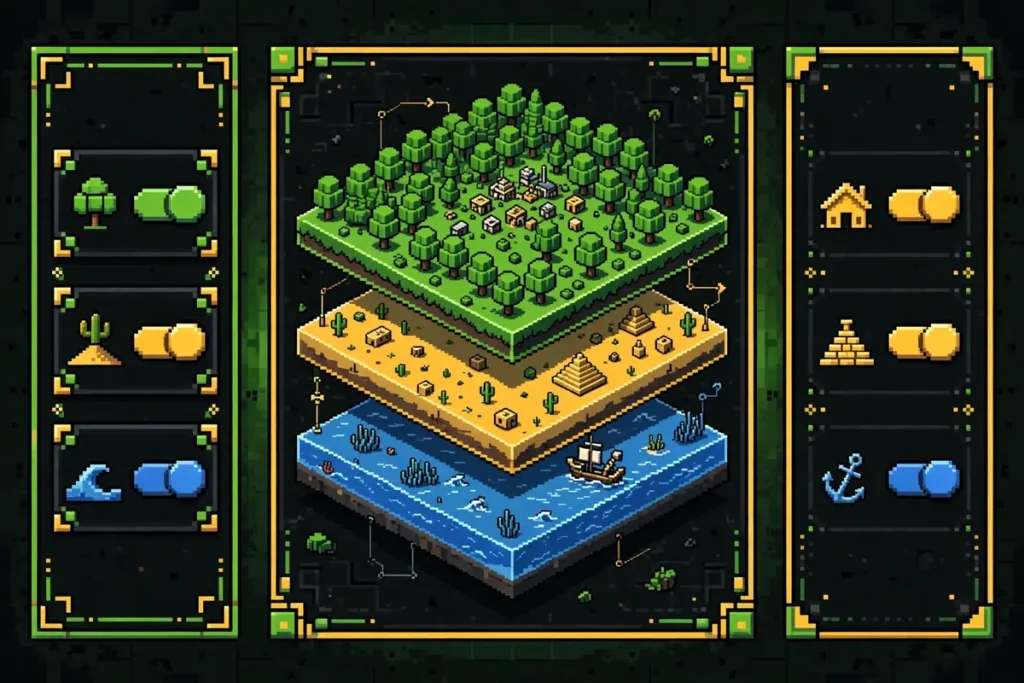
Step 4 — Toggle the 22 layers. Biome colors, structure icons, spawn marker, slime chunks, and more. This is where knowing how to use minecraft seed map layers pays off: study terrain with biomes only, then enable one structure type at a time.
Those layers are the heart of structure hunting: pinpointing any structure straight from the seed walks through the full method, from seed entry to coordinates.
Step 5 — Find structures. Icons sit at true in-game coordinates; click for details. The nearby-structures panel lists what’s near your cursor or spawn, with distances.
Step 6 — Open Find seeds. Click Find seeds, hit Add condition, pick a structure or biome, set the radius from 50 to 3,000 blocks, press Search. Now you’re hunting across millions of seeds.
Step 7 — Save or share. Copy the URL to share the exact view — it encodes seed, version, and position. Or save a PNG for reference while playing.
How to Use Minecraft Seed Map Layers: What All 22 Do
Knowing how to find minecraft seed map layers is half the skill. They fall into four groups:
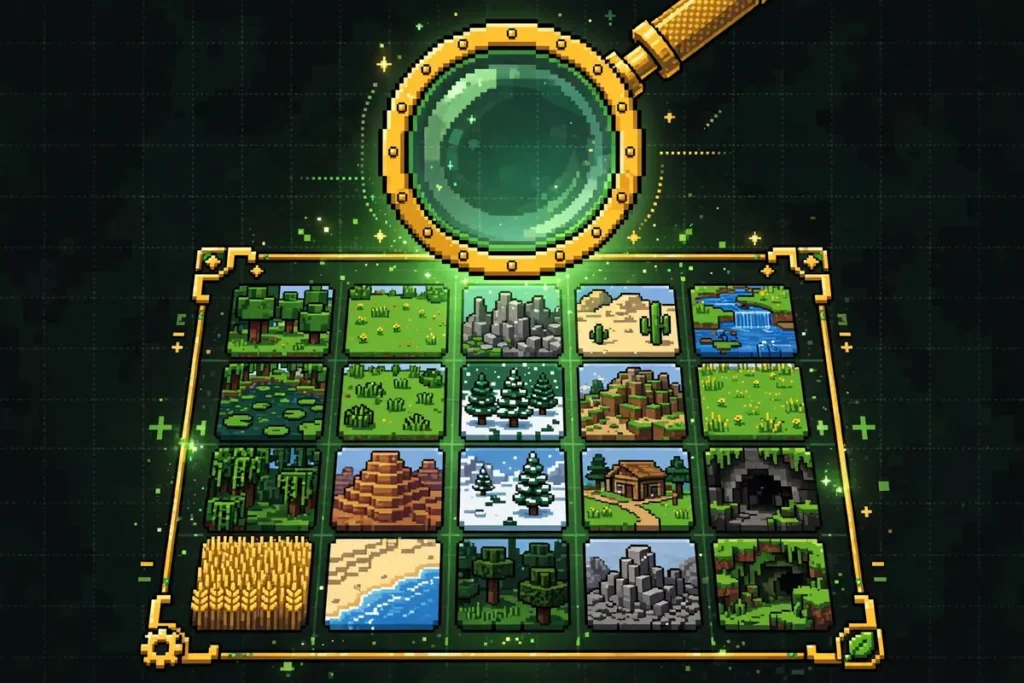
Biomes — the colored terrain: greens for forests, yellows for deserts, pale blues for snow, deep blues for oceans. Learn your favorites and scan continents at a glance.
Structures — one toggle per family: villages, pyramids, temples, monuments, mansions, ancient cities, trial chambers, strongholds, fortresses, bastions, end cities. Enable only your target.
Utility — spawn marker, slime chunk overlay, coordinate grid. The spawn marker matters most: everything is measured from where you’ll start.
Combining — biomes plus villages shows which villages have good terrain; biomes plus strongholds maps your End route. Two or three layers beat twenty-two for focused questions.
How to Use Minecraft Seed Map on Bedrock Edition
Two differences from Java. First, pick Bedrock in the edition dropdown before entering your seed — the tool runs the genuine Bedrock generator for all 30 versions, Beta 1.7 to 26.60. Second, Bedrock seeds are 32-bit: copy yours exactly from world settings. The slime overlay accounts for Bedrock’s seed-independent slime chunks.
Troubleshooting: When the Map Looks Wrong
Most issues with how to use minecraft seed map views trace back to one dropdown. If you came here searching how to find minecraft seed map help, start with the first item:
- Wrong-looking world? Check version, then edition. A Java seed viewed as Bedrock looks valid but is completely wrong.
- Missing structures? Some need newer versions — trial chambers require 1.21+. An empty layer on an older version is correct.
- Slow first load? The engine (~729KB) downloads once; reloads are instant via cache. Hard-refresh if stuck.
Four Habits of Good Map Readers
Once you know how to find minecraft seed map views useful, make these automatic:
- Version first. Seed, edition, version — every time, in that order.
- Zoom out first. Read the continent before the neighborhood.
- Write coordinates down. “Village at 342, -108” beats “near the big hill.”
- Check spawn first. Great world, terrible spawn? You’ll feel it in the first hour.
Frequently Asked Questions
Start Reading Worlds Like Maps, Not Mysteries
You now know how to use minecraft seed map tools end to end: seeds, versions, the 22 layers, and the seed finder. Open the seed map, paste in your world’s seed, and explore for five minutes — you’ll spot things you walked past for weeks.